Search...
⌘K

BASE BL-B01
Setup guide
Central intelligence hub for the B-LINK network. Full two-way communication with all POINT + MINI devices. Integrates to access-control systems and B-SENSE tracking. 16 outputs + 8 inputs, LCD status display, 12-24V powered (Solar compatible).
Short Description
The BASE is the central hub of the B-LINK ecosystem — receiving supervised wireless events from POINT devices and interfacing them into existing security and access control infrastructure.
It provides substantial I/O expansion, onboard status display, flexible network integration options and secure 256-bit encryption — enabling cable-free system extensions across complex sites.
Hardware Setup
Connect Power and Antenna
Connect 12V DC power to the BASE.
Attach the supplied antenna to the SMA connector.
Position the antenna in a clear location, away from metal and glass surfaces, to maximise wireless range and reliability.
Placement Best Practices
Mount the BASE above head height for optimal radio coverage.
Maintain at least 300 mm clearance from large metal surfaces or electrical switchgear.
Avoid placing it inside metal cabinets or behind tinted/treated glass.
Ensure a direct line-of-sight path to POINT devices wherever possible.
Hardware Setup
Connect Power and Antenna
Connect 12V DC power to the BASE.
Attach the supplied antenna to the SMA connector.
Position the antenna in a clear location, away from metal and glass surfaces, to maximise wireless range and reliability.
Placement Best Practices
Mount the BASE above head height for optimal radio coverage.
Maintain at least 300 mm clearance from large metal surfaces or electrical switchgear.
Avoid placing it inside metal cabinets or behind tinted/treated glass.
Ensure a direct line-of-sight path to POINT devices wherever possible.
Hardware Setup
Connect Power and Antenna
Connect 12V DC power to the BASE.
Attach the supplied antenna to the SMA connector.
Position the antenna in a clear location, away from metal and glass surfaces, to maximise wireless range and reliability.
Placement Best Practices
Mount the BASE above head height for optimal radio coverage.
Maintain at least 300 mm clearance from large metal surfaces or electrical switchgear.
Avoid placing it inside metal cabinets or behind tinted/treated glass.
Ensure a direct line-of-sight path to POINT devices wherever possible.
Access User Interface
Accessing BASE Setup Interface
Ensure DIP switches 1 and 2 are set DOWN to enable wireless configuration mode. (Refer to Dip Switch Settings for more detail.)
Connect to the Wi-Fi network: BLINK 11
Password: wirelessIf the device flags “no internet connection”, continue anyway.
Open a browser and enter: http://192.168.1.1
Log in using:
Username: blink
Password: wireless
Access User Interface
Accessing BASE Setup Interface
Ensure DIP switches 1 and 2 are set DOWN to enable wireless configuration mode. (Refer to Dip Switch Settings for more detail.)
Connect to the Wi-Fi network: BLINK 11
Password: wirelessIf the device flags “no internet connection”, continue anyway.
Open a browser and enter: http://192.168.1.1
Log in using:
Username: blink
Password: wireless
Access User Interface
Accessing BASE Setup Interface
Ensure DIP switches 1 and 2 are set DOWN to enable wireless configuration mode. (Refer to Dip Switch Settings for more detail.)
Connect to the Wi-Fi network: BLINK 11
Password: wirelessIf the device flags “no internet connection”, continue anyway.
Open a browser and enter: http://192.168.1.1
Log in using:
Username: blink
Password: wireless
Settings Configuration
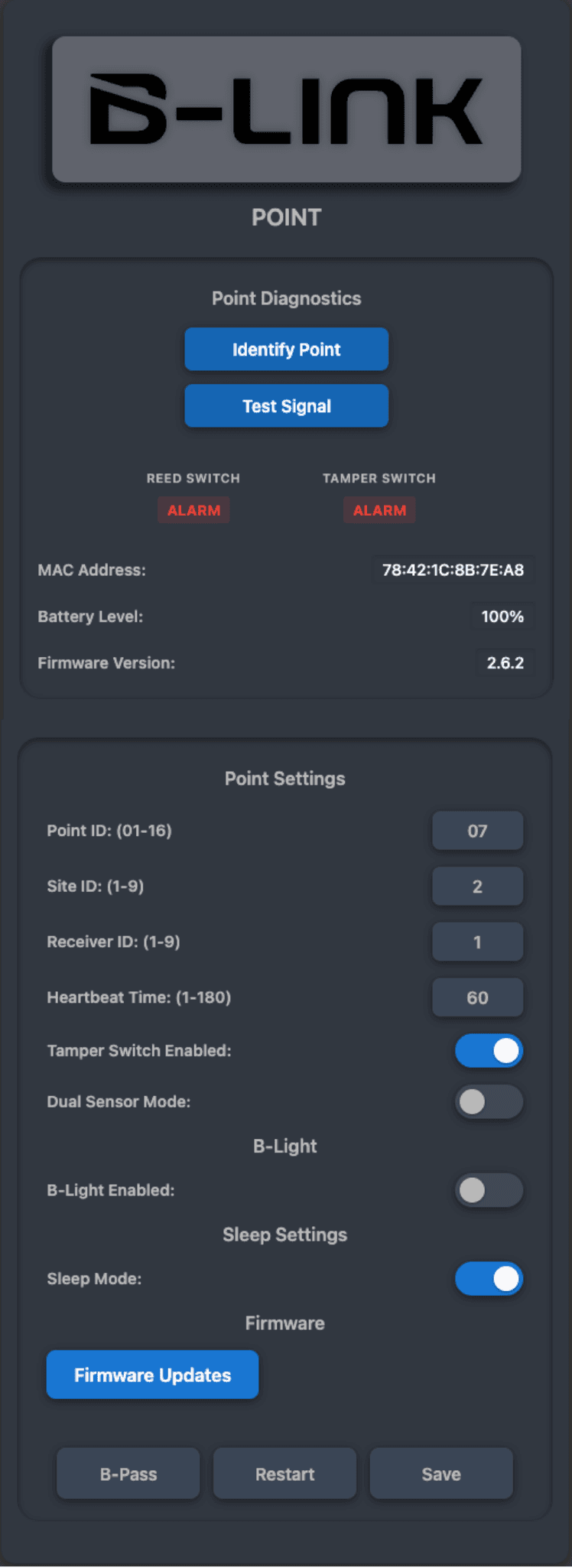
General Settings Setup:
Navigate to Settings
Set your Site ID
Set your Receiver ID
Set your Heartbeat timer (the battery of the device will be effected by this)
Set your Radio power. based on your environment (field devices will automatically update once they receive a message
Set your Output resistances for the base, choose the correct option for your system
Save the changes
Settings Configuration
General Settings Setup:
Navigate to Settings
Set your Site ID
Set your Receiver ID
Set your Heartbeat timer (the battery of the device will be effected by this)
Set your Radio power. based on your environment (field devices will automatically update once they receive a message
Set your Output resistances for the base, choose the correct option for your system
Save the changes
Settings Configuration
General Settings Setup:
Navigate to Settings
Set your Site ID
Set your Receiver ID
Set your Heartbeat timer (the battery of the device will be effected by this)
Set your Radio power. based on your environment (field devices will automatically update once they receive a message
Set your Output resistances for the base, choose the correct option for your system
Save the changes
Network configuration
Ensure Dip switch 1 is on. Navigate using the menu to ->Network
Wireless LAN Setup:
Toggle the Wireless LAN and insert your SSID and Password
Save the changes
MQTT Setup:
Toggle MQTT and insert the The Host ID, Port, Username and Password
Save the changes
Network configuration
Ensure Dip switch 1 is on. Navigate using the menu to ->Network
Wireless LAN Setup:
Toggle the Wireless LAN and insert your SSID and Password
Save the changes
MQTT Setup:
Toggle MQTT and insert the The Host ID, Port, Username and Password
Save the changes
Network configuration
Ensure Dip switch 1 is on. Navigate using the menu to ->Network
Wireless LAN Setup:
Toggle the Wireless LAN and insert your SSID and Password
Save the changes
MQTT Setup:
Toggle MQTT and insert the The Host ID, Port, Username and Password
Save the changes
B-LIGHT Configuration
Standard Alarm set up
Navigate to Menu->Settings
Set input settings to B-LIGHT
Navigate to Menu->B-LIGHT
Toggle the Switch to be on (Blue)
Set Alarm Light Duration:
This is the duration that the light will be active upon activation
Set Alarm Siren Duration:
This is the duration that the siren will be active upon activation
Delay Between Alarms:
This is the delay between when another
Override Duration:
This is the duration that another alarm will not be able to be triggered
(Optional) Warning Triggers:
The amount of intermediate pre-warning triggers before a full alarm is reached. The next trigger after the Warning Triggers amount will set off a full duration alarm, as set above.
For use with CCTV re-triggers & to preserve battery life in a solar setup
Set Warning Triggers:
Select how many triggers you want before a full alarm is activated
Set Warning Window:
This is how long the warning will be active for. During this time another warning cannot be triggered.
Set Warning Light Duration:
This is the duration that the light will be active upon warning activationSet Warning Siren Duration:
This is the duration that the Siren will be active upon warning activationUpon completion of set up hit the save button
B-LIGHT Configuration
Standard Alarm set up
Navigate to Menu->Settings
Set input settings to B-LIGHT
Navigate to Menu->B-LIGHT
Toggle the Switch to be on (Blue)
Set Alarm Light Duration:
This is the duration that the light will be active upon activation
Set Alarm Siren Duration:
This is the duration that the siren will be active upon activation
Delay Between Alarms:
This is the delay between when another
Override Duration:
This is the duration that another alarm will not be able to be triggered
(Optional) Warning Triggers:
The amount of intermediate pre-warning triggers before a full alarm is reached. The next trigger after the Warning Triggers amount will set off a full duration alarm, as set above.
For use with CCTV re-triggers & to preserve battery life in a solar setup
Set Warning Triggers:
Select how many triggers you want before a full alarm is activated
Set Warning Window:
This is how long the warning will be active for. During this time another warning cannot be triggered.
Set Warning Light Duration:
This is the duration that the light will be active upon warning activationSet Warning Siren Duration:
This is the duration that the Siren will be active upon warning activationUpon completion of set up hit the save button
B-LIGHT Configuration
Standard Alarm set up
Navigate to Menu->Settings
Set input settings to B-LIGHT
Navigate to Menu->B-LIGHT
Toggle the Switch to be on (Blue)
Set Alarm Light Duration:
This is the duration that the light will be active upon activation
Set Alarm Siren Duration:
This is the duration that the siren will be active upon activation
Delay Between Alarms:
This is the delay between when another
Override Duration:
This is the duration that another alarm will not be able to be triggered
(Optional) Warning Triggers:
The amount of intermediate pre-warning triggers before a full alarm is reached. The next trigger after the Warning Triggers amount will set off a full duration alarm, as set above.
For use with CCTV re-triggers & to preserve battery life in a solar setup
Set Warning Triggers:
Select how many triggers you want before a full alarm is activated
Set Warning Window:
This is how long the warning will be active for. During this time another warning cannot be triggered.
Set Warning Light Duration:
This is the duration that the light will be active upon warning activationSet Warning Siren Duration:
This is the duration that the Siren will be active upon warning activationUpon completion of set up hit the save button
B-PASS Configuration
Bluetooth Access Control:
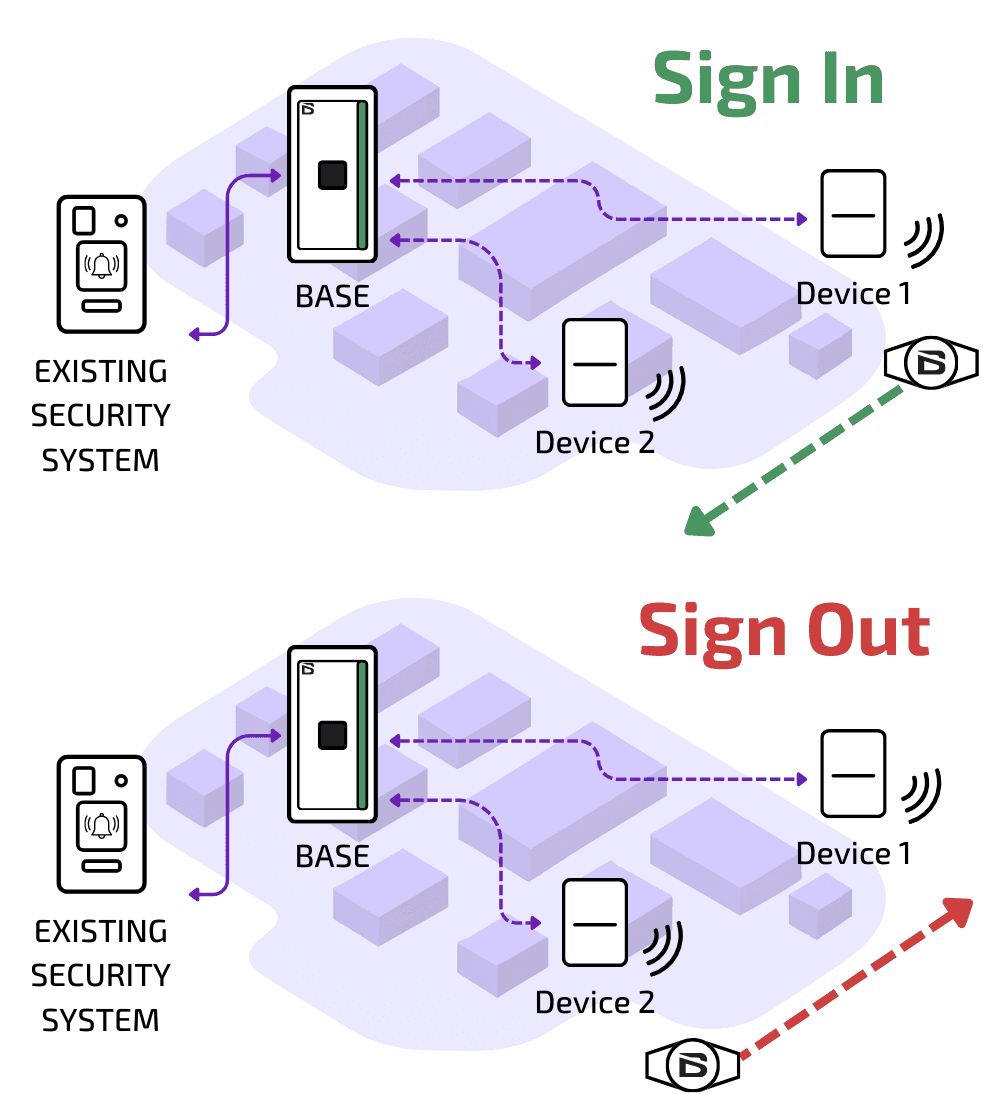
Follow these steps to enable and configure Bluetooth Access Control (BTAC) using the B-LINK BASE:
Open BASE Settings
Navigate to: Menu → SettingsEnable Bluetooth Access Control
Toggle Bluetooth Access Control to ON.
This activates tag-based entry and exit detection using the BTAC POINT devices.Assign BTAC Device IDs
BTAC Device 1 ID:
Set the ID of the first BTAC POINT that detects tags as they approach.BTAC Device 2 ID:
Set the ID of the second BTAC POINT positioned along the direction of travel.
These IDs must match the POINT devices physically deployed on site.
Device 1 marks the direction start, Device 2 confirms the direction.Configure Detection Timing
BTAC Read Time (10–300s):
Maximum allowed time between first and second detection.
If the second device does not detect the tag within this period, no entry or exit is recorded.BTAC Delete Time (10–300s):
Determines how long the first detection is retained before being cleared.
Prevents delayed or incorrect matching of unrelated detections.
Shorter times increase security and accuracy.
Longer times provide more tolerance for slower vehicles and personnel flow.Enable Wiegand Module (if required)
Toggle the Wiegand Module setting to enable emulation of a card reader.
The BASE will then send Entry and Exit events as Wiegand data to a connected access control panel.Set Facility Code
Enter the Facility Code used by the existing security or access control system (range: 100–200).Save the changes and restart the device
B-PASS Configuration
Bluetooth Access Control:
Follow these steps to enable and configure Bluetooth Access Control (BTAC) using the B-LINK BASE:
Open BASE Settings
Navigate to: Menu → SettingsEnable Bluetooth Access Control
Toggle Bluetooth Access Control to ON.
This activates tag-based entry and exit detection using the BTAC POINT devices.Assign BTAC Device IDs
BTAC Device 1 ID:
Set the ID of the first BTAC POINT that detects tags as they approach.BTAC Device 2 ID:
Set the ID of the second BTAC POINT positioned along the direction of travel.
These IDs must match the POINT devices physically deployed on site.
Device 1 marks the direction start, Device 2 confirms the direction.Configure Detection Timing
BTAC Read Time (10–300s):
Maximum allowed time between first and second detection.
If the second device does not detect the tag within this period, no entry or exit is recorded.BTAC Delete Time (10–300s):
Determines how long the first detection is retained before being cleared.
Prevents delayed or incorrect matching of unrelated detections.
Shorter times increase security and accuracy.
Longer times provide more tolerance for slower vehicles and personnel flow.Enable Wiegand Module (if required)
Toggle the Wiegand Module setting to enable emulation of a card reader.
The BASE will then send Entry and Exit events as Wiegand data to a connected access control panel.Set Facility Code
Enter the Facility Code used by the existing security or access control system (range: 100–200).Save the changes and restart the device
B-PASS Configuration
Bluetooth Access Control:
Follow these steps to enable and configure Bluetooth Access Control (BTAC) using the B-LINK BASE:
Open BASE Settings
Navigate to: Menu → SettingsEnable Bluetooth Access Control
Toggle Bluetooth Access Control to ON.
This activates tag-based entry and exit detection using the BTAC POINT devices.Assign BTAC Device IDs
BTAC Device 1 ID:
Set the ID of the first BTAC POINT that detects tags as they approach.BTAC Device 2 ID:
Set the ID of the second BTAC POINT positioned along the direction of travel.
These IDs must match the POINT devices physically deployed on site.
Device 1 marks the direction start, Device 2 confirms the direction.Configure Detection Timing
BTAC Read Time (10–300s):
Maximum allowed time between first and second detection.
If the second device does not detect the tag within this period, no entry or exit is recorded.BTAC Delete Time (10–300s):
Determines how long the first detection is retained before being cleared.
Prevents delayed or incorrect matching of unrelated detections.
Shorter times increase security and accuracy.
Longer times provide more tolerance for slower vehicles and personnel flow.Enable Wiegand Module (if required)
Toggle the Wiegand Module setting to enable emulation of a card reader.
The BASE will then send Entry and Exit events as Wiegand data to a connected access control panel.Set Facility Code
Enter the Facility Code used by the existing security or access control system (range: 100–200).Save the changes and restart the device
Settings description
Description of Settings
Site ID
Used when operating B-LINK devices across multiple locations.
All BASE units sharing the same Site ID will recognise and communicate with one another as part of the same site network.
This prevents cross-site interference and ensures alarms, logging and control remain isolated to the correct location.
Applies only to BASE devices — POINT devices follow their assigned BASE.
Receiver ID
Defines which BASE a POINT should report to when multiple BASE devices operate within radio range of each other.
Each POINT uses the Receiver ID to bind to the correct BASE and avoid cross-reporting or duplicate alarms.
Essential for multi-BASE deployments, large sites, or overlapping coverage zones.
Heartbeat Timer
Controls how often a POINT sends a periodic “alive” signal to its assigned BASE.
If the BASE does not receive a heartbeat within the expected timeframe, it generates a Heartbeat Alarm — indicating a device dropout or communication loss.
Short interval = faster fault detection, but reduced battery life on battery-powered POINTs
Long interval = better battery performance, but slower detection of failures
Both BASE and POINT must share the exact same Heartbeat Timer value.
Radio Power
Sets the transmit power for communication between POINT devices and the BASE.
Adjust to match site layout and power needs:
Lower power for POINTs located close to the BASE to extend battery life and reduce RF noise
Higher power for extended distance or challenging RF environments
Optimal tuning improves reliability while preserving battery performance.
Output Resistances
These define the electrical resistance values output to the access control panel for:
Tamper
Seal
Alarm
Compatible with the major industry panel formats (Gallagher, Inner Range, Inception, WinDSX, etc.).
Allows correct alarm state detection and eliminates the need for external resistors or custom wiring.
Settings description
Description of Settings
Site ID
Used when operating B-LINK devices across multiple locations.
All BASE units sharing the same Site ID will recognise and communicate with one another as part of the same site network.
This prevents cross-site interference and ensures alarms, logging and control remain isolated to the correct location.
Applies only to BASE devices — POINT devices follow their assigned BASE.
Receiver ID
Defines which BASE a POINT should report to when multiple BASE devices operate within radio range of each other.
Each POINT uses the Receiver ID to bind to the correct BASE and avoid cross-reporting or duplicate alarms.
Essential for multi-BASE deployments, large sites, or overlapping coverage zones.
Heartbeat Timer
Controls how often a POINT sends a periodic “alive” signal to its assigned BASE.
If the BASE does not receive a heartbeat within the expected timeframe, it generates a Heartbeat Alarm — indicating a device dropout or communication loss.
Short interval = faster fault detection, but reduced battery life on battery-powered POINTs
Long interval = better battery performance, but slower detection of failures
Both BASE and POINT must share the exact same Heartbeat Timer value.
Radio Power
Sets the transmit power for communication between POINT devices and the BASE.
Adjust to match site layout and power needs:
Lower power for POINTs located close to the BASE to extend battery life and reduce RF noise
Higher power for extended distance or challenging RF environments
Optimal tuning improves reliability while preserving battery performance.
Output Resistances
These define the electrical resistance values output to the access control panel for:
Tamper
Seal
Alarm
Compatible with the major industry panel formats (Gallagher, Inner Range, Inception, WinDSX, etc.).
Allows correct alarm state detection and eliminates the need for external resistors or custom wiring.
Settings description
Description of Settings
Site ID
Used when operating B-LINK devices across multiple locations.
All BASE units sharing the same Site ID will recognise and communicate with one another as part of the same site network.
This prevents cross-site interference and ensures alarms, logging and control remain isolated to the correct location.
Applies only to BASE devices — POINT devices follow their assigned BASE.
Receiver ID
Defines which BASE a POINT should report to when multiple BASE devices operate within radio range of each other.
Each POINT uses the Receiver ID to bind to the correct BASE and avoid cross-reporting or duplicate alarms.
Essential for multi-BASE deployments, large sites, or overlapping coverage zones.
Heartbeat Timer
Controls how often a POINT sends a periodic “alive” signal to its assigned BASE.
If the BASE does not receive a heartbeat within the expected timeframe, it generates a Heartbeat Alarm — indicating a device dropout or communication loss.
Short interval = faster fault detection, but reduced battery life on battery-powered POINTs
Long interval = better battery performance, but slower detection of failures
Both BASE and POINT must share the exact same Heartbeat Timer value.
Radio Power
Sets the transmit power for communication between POINT devices and the BASE.
Adjust to match site layout and power needs:
Lower power for POINTs located close to the BASE to extend battery life and reduce RF noise
Higher power for extended distance or challenging RF environments
Optimal tuning improves reliability while preserving battery performance.
Output Resistances
These define the electrical resistance values output to the access control panel for:
Tamper
Seal
Alarm
Compatible with the major industry panel formats (Gallagher, Inner Range, Inception, WinDSX, etc.).
Allows correct alarm state detection and eliminates the need for external resistors or custom wiring.